Install XPress
XPress is distributed through the Atlassian Marketplace. Installation takes under two minutes and requires Confluence admin permissions on your site.
Before you install
Section titled “Before you install”- Confluence Cloud - XPress is not available for Confluence Data Center or Server.
- A user account with the Confluence admin privilege (needed to install Marketplace apps).
- At least one space with pages you want to export.
Step 1 - Open the Marketplace listing
Section titled “Step 1 - Open the Marketplace listing”- Sign in to your Confluence site as an admin.
- Open the Marketplace listing for XPress: marketplace.atlassian.com → XPress.
- Click Get it now (or Try it free to start a trial).
Step 2 - Choose your site
Section titled “Step 2 - Choose your site”If you administer more than one Confluence site, pick the site XPress should be installed on, then click Install.
Step 3 - Review and accept permissions
Section titled “Step 3 - Review and accept permissions”Atlassian will display the permissions XPress requests:
read:page:confluence,read:confluence-content.all,read:confluence-content.summary,read:hierarchical-content:confluence- read page content and traverse page trees so you can pick what to export.read:confluence-space.summary,read:space:confluence- list spaces and read their metadata.read:attachment:confluence- embed PNG and JPEG images attached to your pages.search:confluence- retrieve page content and its formatting for the export.read:confluence-user- identify who owns an export template and who may manage templates.write:confluence-file,write:confluence-content- required by the Confluence content-export APIs XPress reads through. Exports are delivered to you as downloads; XPress does not write files or changes back into your content.storage:app- store your export templates, each space’s default template, the record of each export, and the exported files themselves.
The page, content, attachment and search permissions are used on behalf of the person exporting: an export runs in the background, and XPress reads every page with that person’s own Confluence permissions, so their file holds only content they can open themselves, and only they can download it.
Click Get it now to confirm.
Step 4 - Wait for installation
Section titled “Step 4 - Wait for installation”Atlassian provisions the app - usually 10-30 seconds. When complete you’ll see a Get started button.
Step 5 - Open XPress inside a space
Section titled “Step 5 - Open XPress inside a space”- Open any Confluence space.
- In the space’s left-hand sidebar, click XPress.
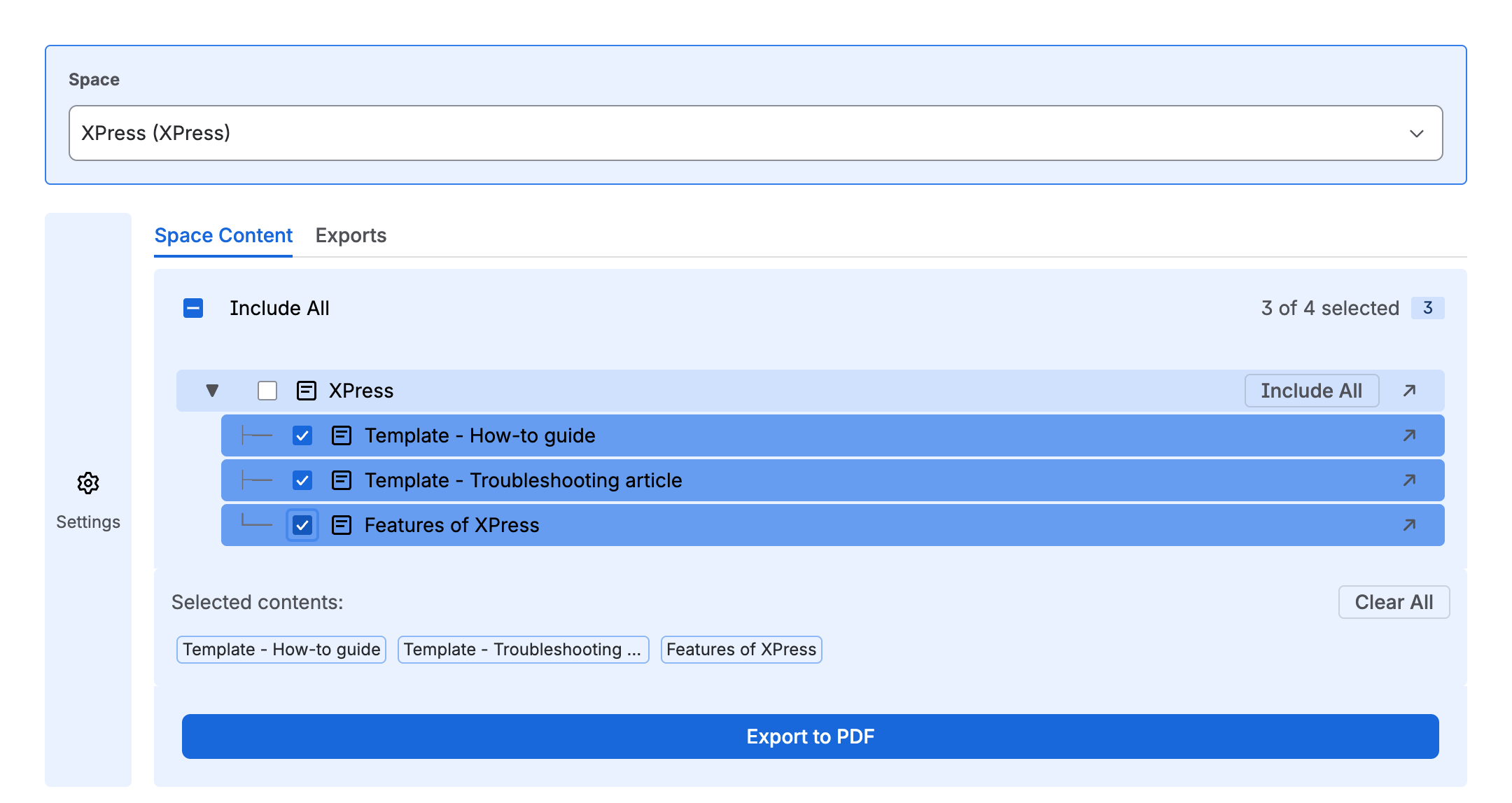
XPress loads the space’s page tree. The settings panel starts collapsed - click the Settings icon on the left to open it, where you will find the template picker.
Verifying the install
Section titled “Verifying the install”You’ll know XPress is working when:
- XPress appears in the space sidebar of every space you visit, plus an XPress page of its own under Apps.
- An Export (XPress) action appears on individual pages (in the byline and the ··· content menu) for quick single-page exports.
- The page tree loads with selectable pages.
- Opening Settings shows a Template picker, a Manage → Templates card, and Adjust for this export.
Updating XPress
Section titled “Updating XPress”There is nothing to deploy or restart on your side, but not every update arrives the same way:
- Small updates install themselves. Fixes and improvements that need no new permission reach your site automatically.
- Releases that ask for a new permission wait for you. A Confluence admin has to review and approve them, and until someone does, the site keeps running the version it already has.
To check for a pending update, go to admin.atlassian.com → your site → Apps. A release waiting for approval shows XPress as Outdated, with the new permissions listed and an option to accept.
It is worth checking occasionally. If a feature described in these docs is missing from your XPress, an unapproved update is almost always the reason.
Uninstalling XPress
Section titled “Uninstalling XPress”- Settings → Apps → Manage apps in Confluence.
- Find XPress in the user-installed list.
- Click Uninstall.
Your XPress data - templates and export history - is removed from your site under Atlassian’s standard data-retention policy. See privacy for details.